MCP Workspace
Run MobileRank through AI agents, safely.
Enable your team to use keyword discovery, metadata drafting, and reporting through MCP tools with clear permissions and usage logs.
Important: for normal users, login is enough inside MobileRank. MCP API endpoints are mainly for external clients and team integrations.
Start here (no guesswork)
If MCP page looked empty or confusing, follow these exact steps in order.
- 1) Sign in first. Without login, MCP configuration and admin controls are hidden.
- 2) Go to your workspace with your own account. If you need API token access, ask your workspace admin to issue one for you.
- 3) Use your MobileRank login for in-app usage. Only if you connect an external client (Claude/Desktop/API), request an integration token from your workspace admin.
- 4) For external MCP clients, test with ping first. If ping works, integration is active.
- 5) Then switch to production tools like generate_metadata_brief and review invocation logs with your workspace admin.
Setup flow built for teams
Start with a minimal setup, then expand permissions and tools as your workflow matures.
Step 1
Pick your AI client
Choose GPT, Claude, or a custom MCP-compatible client for your organization.
Step 2
Authorize access
Create scoped credentials so assistants can call only approved MobileRank tools.
Step 3
Enable tools
Turn on keyword, metadata, and reporting tools based on workspace roles.
Step 4
Run test prompts
Validate outputs in a safe test mode before agents use tools in production.
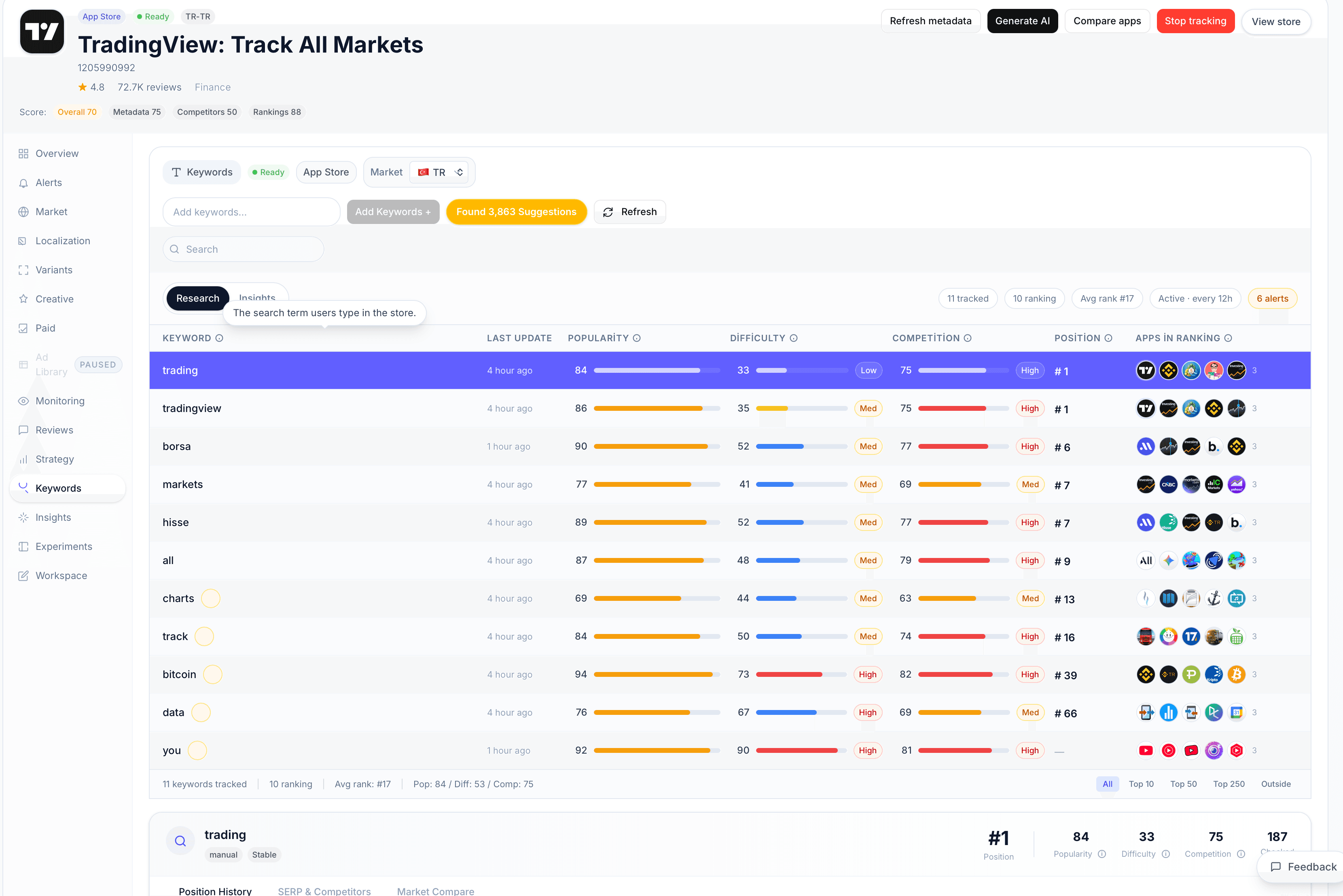
Keyword intelligence tools exposed via MCP
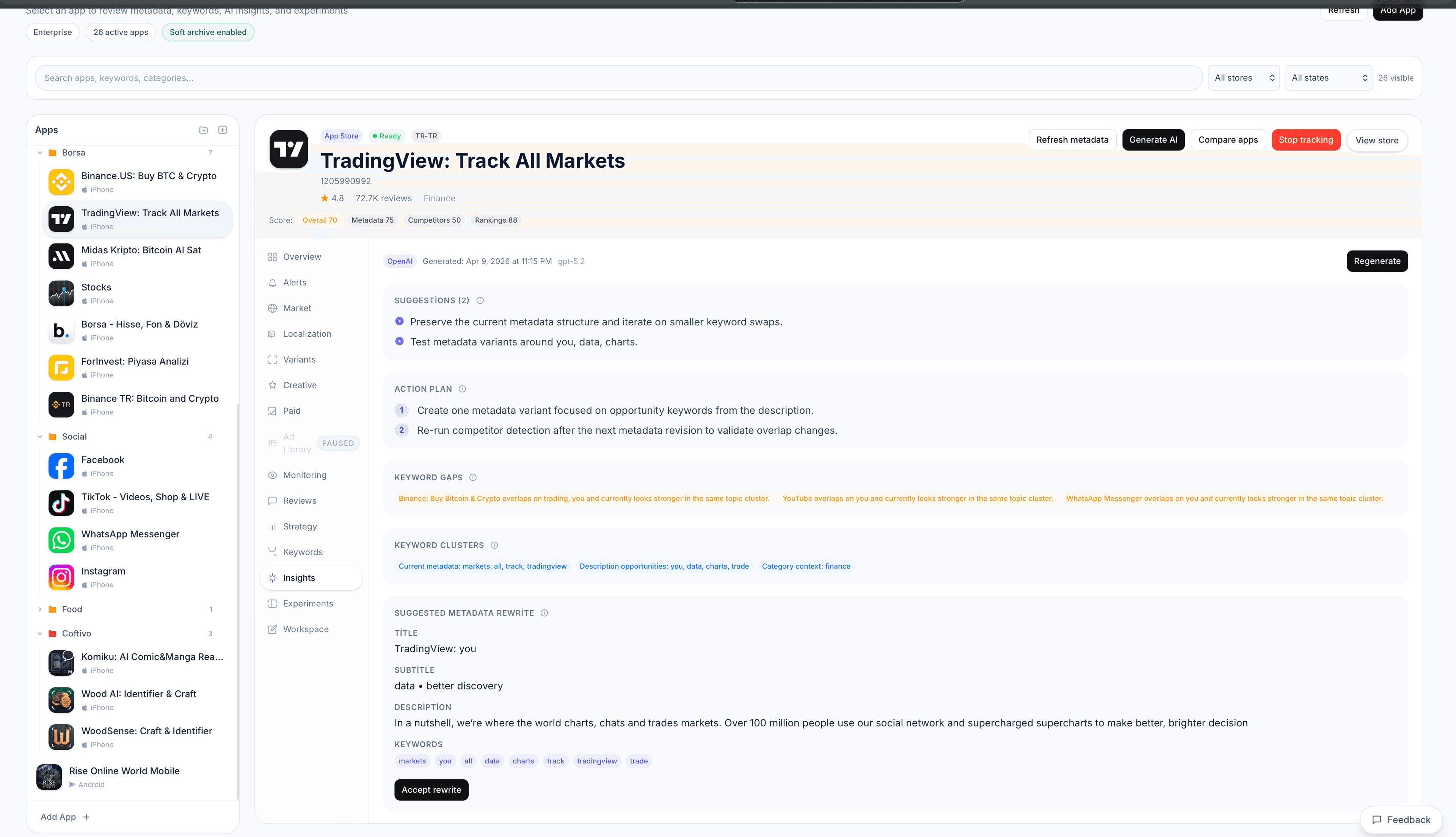
AI rewrite workflows callable from agents
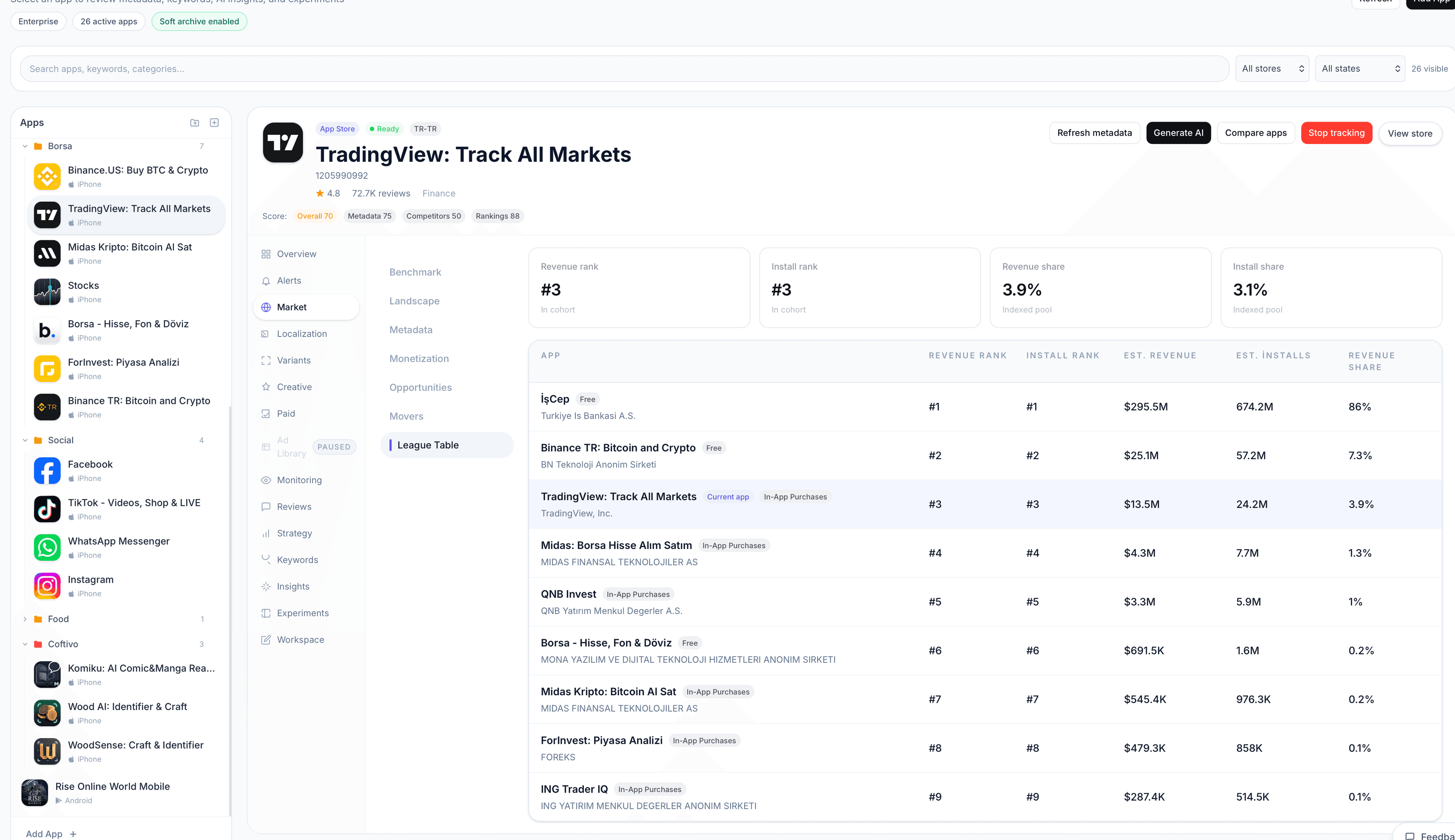
Competitor insights available as secure tools
Provider-ready architecture
One tool layer, multiple AI adapters. Keep your product logic in one place.
GPT Adapter
Connect your MobileRank tools to GPT-based assistants with scoped permissions.
Claude Adapter
Use Claude-compatible tool calling while preserving audit logs and controls.
Custom MCP Client
Bring your own client and map it to MobileRank tools through a shared schema.
Quick start API
- 1) Sign in and open MCP Workspace from the left sidebar.
- 2) Generate or copy your MCP token from your secure environment config.
- 3) Call GET /api/mcp (or /api/mcp/providers/{provider}) to list available tools.
- 4) Execute ping with method=call_tool to verify connection and authentication.
- 5) Run generate_metadata_brief and review invocation logs from the admin MCP logs endpoint.
GET  /api/mcp
POST /api/mcp {"method":"call_tool","params":{"name":"ping","arguments":{"message":"hello"}}}

GET  /api/mcp/providers/gpt
POST /api/mcp/providers/claude {"method":"list_tools"}